What Capture Lab looks like
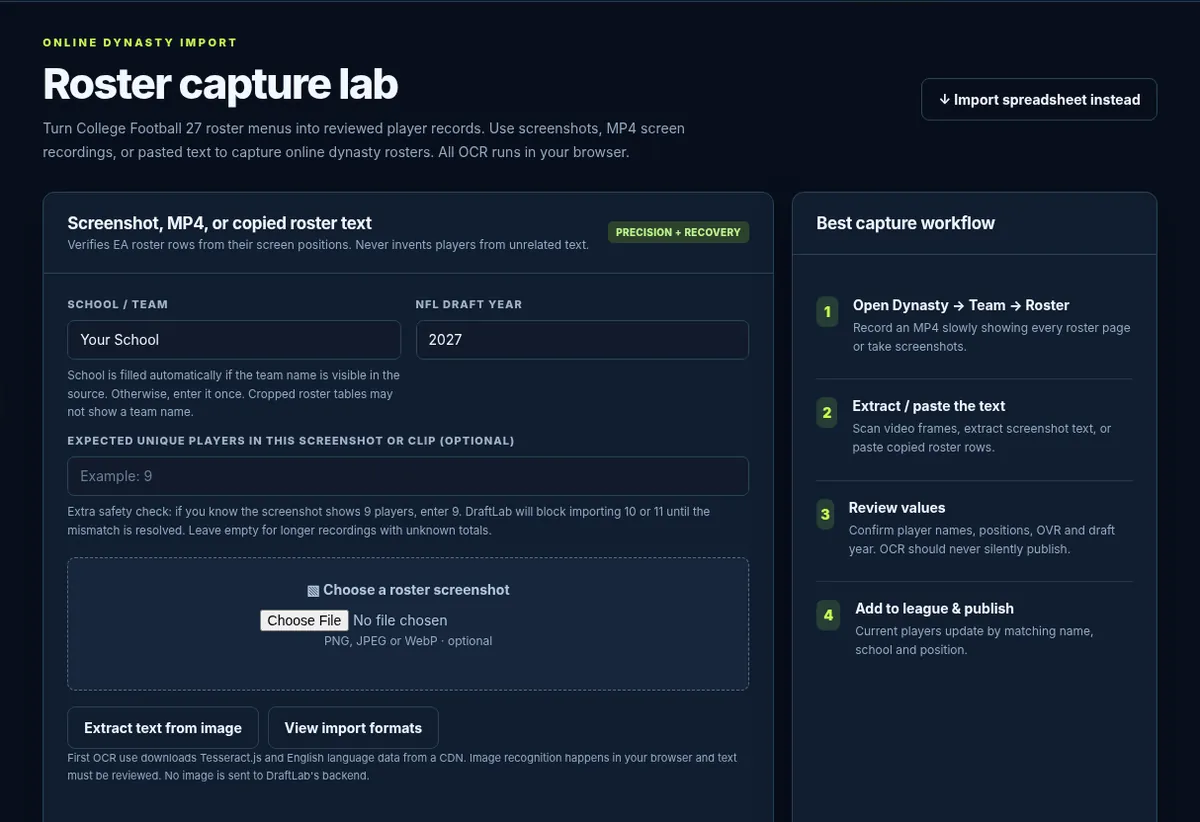
Begin on DraftLab, choose Capture lab in the sidebar, set the team and intended draft year, and then upload the relevant roster screen. The app uses the Review step before adding records to your roster.
What Capture Lab reads
The browser-based scanner attempts to capture player names, class years, positions, overall ratings and visible numeric attributes such as Speed (SPD), Acceleration (ACC), Agility (AGI), Change of Direction (COD), Strength (STR) and Awareness (AWR). It can also attempt to read the NIL number next to its game icon.
It only reads fields shown in your capture. It cannot recover information hidden off-screen, infer invisible columns, or guarantee that every digit is correct.
How to get a cleaner screenshot
- Pause on the roster grid with all desired columns fully visible.
- Prefer your console or PC's original screenshot over a phone photograph of a TV.
- Capture at the highest practical resolution and avoid JPEG compression where possible.
- Keep the full first and last player rows visible, plus a little margin around the table.
- If you know how many rows should be captured, enter that expected count before scanning.
- Compare every uncertain rating against the original image before approval.
How to capture an MP4
Record the roster while slowly scrolling, briefly holding each screen steady. Overlapping rows help the scanner identify the same player across frames instead of creating duplicates. Keep menus, overlays and pop-up notifications out of the roster area when possible.
The scanner combines readings from selected frames, but video compression, motion and low resolution can still cause incorrect numbers. Recheck the review queue, especially ratings and NIL values.
Review the results before importing
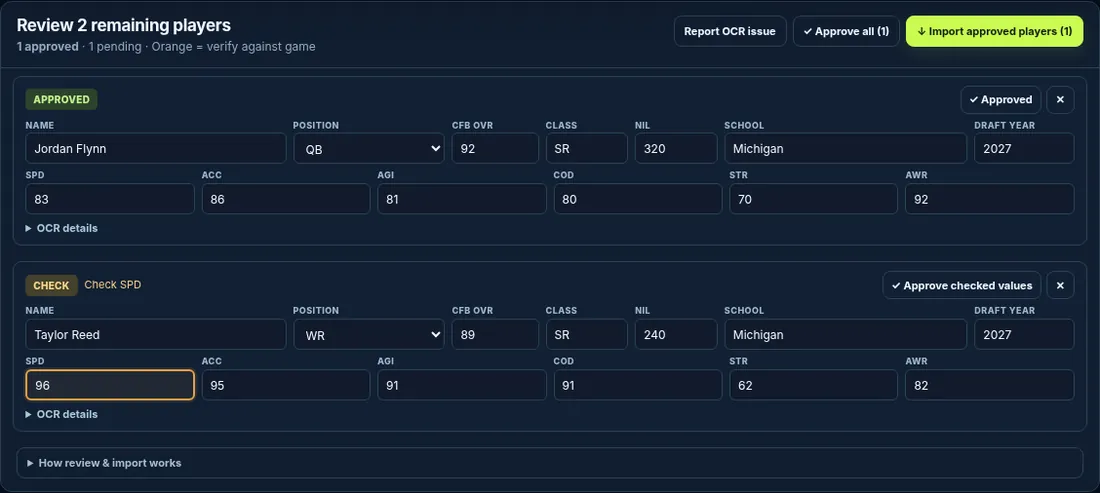
If Capture Lab reports conflicting speed or acceleration values, compare those fields with the original screenshot and enter the right number manually. Missing full names should remain unexpanded unless a game detail panel confirms them. Download a review backup if you need to move an unfinished review to another device.
What the second numeric reader does
DraftLab uses OCR plus an experimental digit-shape second reader for some numeric cells. If they disagree, the review interface may suggest a candidate such as “Use 77?” rather than silently replacing the original. This second reader is experimental and does not eliminate the need to verify player stats.
When a value is incorrect, you can edit the field. Approval should follow verification, not replace it.
Report an accuracy problem
Open DraftLab 27, choose Feedback near Sign In, select Capture Lab accuracy, and describe what was detected versus what was displayed in the game. Attach a cropped screenshot if helpful. Only information you explicitly send through the feedback form is delivered to the development inbox.